Guidelines for Submitting Photo Retouching

For each of the two images (Joe & Lou and Fancy Lady) we have been repairing, please turn in the following:

  • Printed Files
  1. Before – the original, unaltered images
  2. After – the completed, repaired, retouched, collaged full color image
  3. File on left side of The Folder – Completed assignment sheet. Any additional notes as desired
  4. File on right side of The Folder in reverse chronological order – printouts of the project at each significant stage of development. Include any communications or notes with further instructions pertaining to development

Joe & Lou – You have a couple of options on how you re-build the Joe & Lou image once you have completed the appropriate repairs.

  1. You can include a new sky, one of your original photos, and render the entire image as a full color image. Using the techniques practiced in class, make everything look natural.
  2. You can select, copy and paste Joe & Lou into one of your original photos.
  • Digital Files

It is not necessary to submit a digital “before” picture for either image. After Only

Due Wednesday, February 17th

Photoshop’s Pen Tool

Today we’ll take a look at Photoshop’s pen tool and learn how to use it for making vector-precise selections. Afterwards, we’ll step up to Adobe Illustrator and take a closer look at the pen tool.

Recap of the ‘Fancy Lady’ exercise

Let’s take a look at the original image as photographed. The original measured about 18×24 inches and was photographed with a Canon Digital Rebel. The client’s objective is to restore the image to match original as closely as possible.
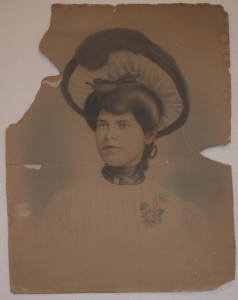
fancy lady before

fancy lady before

It’s important to analyze the image before deciding how and where to begin.  Is this a photograph, a drawing, or both? My impression was that it was very photographic in look and feel, but but definitely hand drawn, possibly from a projected image.

The substrate is a multiple ply, non archival material, discolored from the paper’s acid content.  The only distinguishing mark in the background is the soft blue halo behind the lady. Rather than repair the background, a decision is made to replace it with a brand new digital background that imitates the airbrushed halo in the orignal.

The hat requires repair.

The tear that runs across the neck and chin need repair.

The lady’s dress should be distinct and separate from the background.
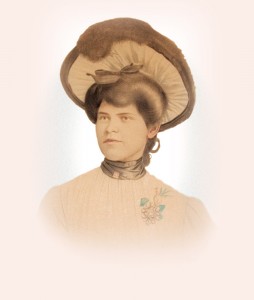
Fancy Lady After

Fancy Lady After

Here is an example of the repaired image.

As you look at it, study each element and decide how you would build the image, layer by layer.

From the bottom up, we have the background color layer, the blue halo layer and the lady layer.

As you repeat/complete this exercise, keep the following in mind:

  • make accurate selections
  • pay attention to selection edges
  • remember to deselect when appropriate
  • save a selection for later (select menu)
  • levels applied with an adjustment layer affects all layers below
  • merge selected layers if necessary
  • pay attention to what layer you’re on and the order of your layers

I am frequently asked why I choose one technique over another, or perform one action before another, instead of after.

Sometimes I have a very logical, reasonable reason for doing things in a particular order, but frequently there is no real right or wrong way. There are a myriad of ways. For each problem presented in restoring this image there are dozens of solutions. As designers we are challenged to come up with a creative solution and execute the design within the constraints of time and budget.

Each image presents its own set of unique challenges, and restoring photos can consist of lots of missteps. The path to restoring a photo is not always the straight road that we went down in today’s class. Try starting over to see if you can repeat what we did in class. Take it one step at a time, one layer at a time. Give your layers a logical name so you don’t get confused, and remember, practice makes perfect.

Photoshop Selections continued

Today we continue the retouching exercises by reviewing techniques used on the “Fancy Lady” image, which you will find on the Transfer Volume. The Pen Tool and Photoshop Paths will be introduced. We’ll review your “wild art” photos and choose images to use in a photo collage.  We’ll discuss the purpose…what the collage will be used for…in class.

Reading Assignment: Layout Workbook pp. 52–71 Structure & Organization

Shooting the Campus

Today you will be spending time photographing the college campus. The time period allowed will be announced at the beginning of class. Remember to bring your camera and a cable and a card reader, if necessary, in order to download your photos in class. This shooting assignment is part of the photo retouching project that we began on Wednesday of last week.

Retouch and Repair Damaged Photos

Use this link for the reading assignments. Retouching and repairing old or damaged photographs provides practice with:

  • levels used to adjust tonal values
  • a variety of methods for making selections
  • the cloning tool
  • the cropping tool
  • applying color to a b/w image

Futurist Visions from the Last Century

Blast from the Past…
Here are a couple of must-see videos that have affected the design business from the 60s on. Enjoy.

Shopping from home in 1999 (1967)

Doug Englebart’s Mouse – 1

Doug Englebart’s Mouse – 2 (1968)

Apple’s Knowledge Navigator (1987)

What exciting developments can we look forward to in our future?

GRM23-Haberman Week 1

We begin the process of learning how to capture images and manipulate them in Photoshop. Discussion and hands-on exercises explore:

  • Digital cameras
  • Photoshop’s work environment
  • Color Modes/Models
  • Resolution – ppi, dpi, lpi
  • Masks & Simple Selections
  • Tools & Palettes
  • Brushes
  • Color Picker
  • Introduction to layers
  • Printing from Photoshop overview

Using techniques reviewed in this week’s class, create a self-portrait and attach it to your email attendance. You are required to submit an image with each class attendance email. The images should be representative of the work you did in class during each session. Your images do not have to be complete, and they will not be graded until the folders are turned in.

  1. The image attached to attendance demonstrates that you participated in classroom exercises and activities.
  2. The images indicate you are practicing what you are learning.
  3. The images help to identify your email in a unique and personal manner.

ROBIN WILLIAMS ON DESIGN

ANDREW MUNDI ON DESIGN

The purpose of these two exercises is to give students a understanding of how raster images and their layers behave.

Why Design Wise words from design authorities, reading assignments, et al.

(Be sure to follow this link to additional reading assignments and exercises.)

Making Selections – In-class exercise

Spheres – In-class exercise – due Jan. 25 beginning of class.

  • Beginning Layers
  • Marquee Selections
  • Simple Gradients
  • Modifying the edge of a selection

HOMEWORK:

Com 109 Finals Week Lab Hours

The COM 109 lab will be open at the following times during the finals week:

  • 12/10 10:30am-6:00pm
  • 12/11 1:00pm-6:00pm
  • 12/14 10:30am-6:00pm
  • 12/15 3:00pm-6:00pm

GR M23 Final

Thurs. Dec. 10th from 6 p.m. to 8 p.m. Don’t be late. Be prepared to present your completed, final project at 6 p.m. sharp.