Squares – Solutions
Posted on March 4th, 2009
I hope you all enjoyed this little exercise. If your answer is 30, you are right. Travis, if you still count 31, show us that last square!
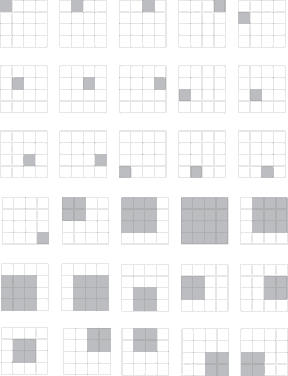
This solution is courtesy of Ben.
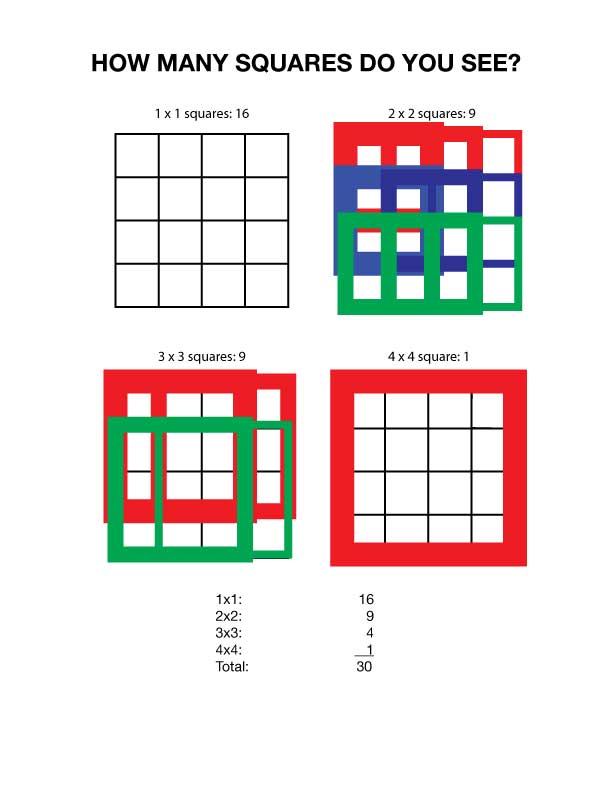
I hope you all enjoyed this little exercise. If your answer is 30, you are right. Travis, if you still count 31, show us that last square!
This solution is courtesy of Ben.
During the week of March 2 or thereabouts we will discuss the legality and ethics of appropriating images. You are to listen to Terry Gross’ Fresh Air Broadcast interviewing the artist, Shepard Fairey, responsible for the now-famous Obama “Hope” poster, and free-lance photographer, Manny Garcia, who took the original photograph published by Associated Press.
Due Thursday, March 5th.
The transformation tools offer two distinct approaches to using them. When activated, each has an origin point, the place where the transformation begins. The origin point defaults to the center of the object’s bounding box, which should be turned off before you use the transformation tools.
The tools can be used manually, or through the dialog box. In addition, the origin point of each can be altered by dragging it to a new location, or simply clicking on the new location. By pressing the option key, you can bring up the dialog box, which allows you to specify a precise transformation, or transform a copy of the original object.
This lesson will also explore the amazing capabilities of the blend tool.
Tuesday, Feb. 17th’s lesson revisits our Obama illustrations and reviews the pen tool basics of creating and editing paths. There are three exercises you must complete: 1) Curve template, 2) Corner template, and 3) Maple Leaf template. Lecture will also include an introduction to Adobe InDesign and review the recommended Adobe Workflow. Send your template exercises with your Feb. 17th attendance.
Completed Obama illustration due Tuesday, Feb. 24th.
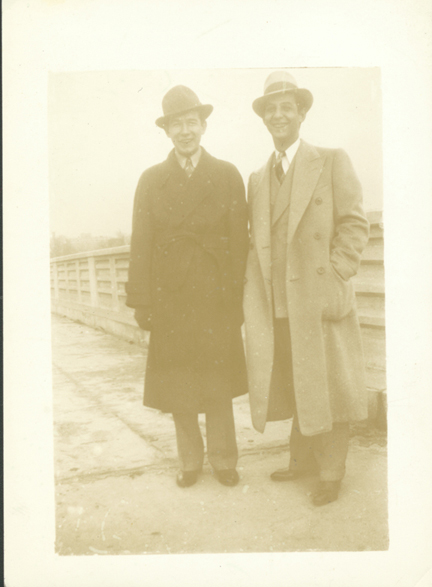
Use these photos in your retouching and colorizing exercises. They are relatively low resolution when compared to the files distributed in class, but if you’d like to practice, here they are for the downloading.
READING HOMEWORK:
You’ll want to read “Photoshop Magic.” This reading is a review of Thursday’s class. The images are from an older version of the Photoshop; hopefully you won’t have difficulty following along.
File formats and compression are reviewed in this reading.
Scanning Guidelines reviews scanning.
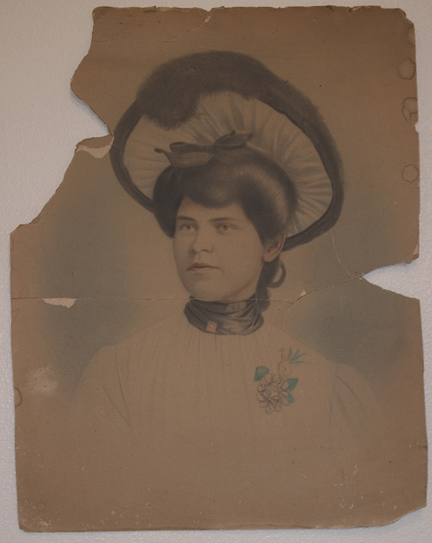
The name of the file that you will be retouching is fancylady.jpg , which will be distributed during class.
By completing this project, students should gain a basic understanding of the following tools and techniques used to repair, restore, and colorize old and damaged photographs:
DUE: Feb. 19
Send your jpgs, as usual, by email. Submit two prints — the original, and the completed retouched and colorized image in your folder. Present at the beginning of the period.
Bring in an old photo from home, retouch and submit it along with the “fancy lady” for full credit on this assignment.
Part 1 & 2 – Thursday Jan. 29th.
Part 3 – Thursday Feb. 5th.
How to submit the exercise: