Reporting Attendance

I’ve located the missing emails, and have received assignments from many of you but not all.  If I have not responded to any of your emails, see me to make sure that I get them going forward. I have asked several of you to do more work on the Obama illustration, and you may need more help to accomplish this. We will be re-visiting this assignment within the next couple of weeks in class. Soon I’ll post instructions but want to wait until I have CS4 so you’ll recognize the images. The project due date will be most likely be around midterm.

In the meantime, I suggest you start bringing digital photos to class. All who have cameras, bring them to class…and don’t forget the cable to download the images to the computer. Remember, when you send your attendance, I want a new and different image each week. This can be done during your lab time, or you can work on them at home if you prefer.
Photoshop Layer Basics

The purpose of these two exercises is to give students a understanding of how raster images and their layers behave.

Making Selections – In-class exercise

Spheres – In-class exercise – due jan. 29 by the beginning of class.

  • Beginning Layers
  • Marquee Selections
  • Simple Gradients
  • Modifying the edge of a selection

HOMEWORK:

Attach Image with Your Attendance

We begin the process of learning how to capture images and manipulate them in Photoshop. Discussion and hands-on exercises explore:

  • Digital cameras
  • Photoshop’s work environment
  • Color Modes/Models
  • Resolution – ppi, dpi, lpi
  • Masks & Simple Selections
  • Tools & Palettes
  • Brushes
  • Color Picker
  • Introduction to layers
  • Printing from Photoshop overview
  • The Journal

Using techniques reviewed in this week’s class, create a self-portrait and attach it to your email attendance. You will be creating a “quick” self-portrait for each class session. By the end of the semester you will have enough images to “fill a book.” Each of these “sketches” should be quick, taking only 10-15-minutes or less. Don’t overthink them. Use them to experiment. Later, if you want to go back to an image and spend additional time on your sketches, you may. The sketches will serve multiple purposes throughout the semester, so it is important that you participate…it is part of your attendance grade.

  1. The sketches demonstrate that you participated in classroom exercises and activities.
  2. The sketches, being self-portrait in nature, and using techniques covered in the classroom, give you the opportunity to practice what you are learning.
  3. The sketches help to identify your email in a unique and personal manner.
  4. You will use these sketches as part of your library of images.
  5. Print a copy of your sketch and paste or tape into your journal.

ROBIN WILLIAMS ON DESIGN

ANDREW MUNDI ON DESIGN

The Folder

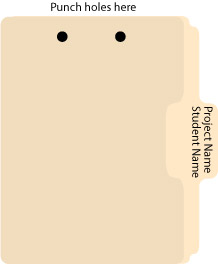
Every assignment must be kept in a 3- or 5 tab manilla folder. The name of the assignment should be written on the tab, along with your first and last name. The folders should be punched with a special two-hole punch, which is kept in the Com151 classroom. (It wanders and the computers are black like the punch, so we may have to be on the lookout.) You’ll need to purchase the steel fastener bases to attach the paperwork generated for each assignment. And you thought with computers, we’d print less?

To assemble, the tab should be on the right with the holes punched on top.  For our first few projects you will generate a project sheet by printing the blog entry describing the project.

folder front

TIP: Label all printouts with their corresponding electronic file name

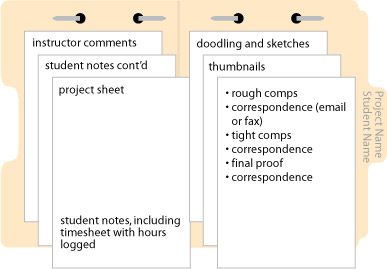
open folder with contents

Punch and attach the finished project sheet on the left. As you work on a project, you should be keeping track of the time you spend on each facet of the job. It is likely that you will need more than one work session to complete a project, so make sure you keep track of all time spent.

The right side of the folder is for all of the “paper” you generate over the course of the project. These procedures will help organize the workflow on any given project.

Folders and electronic files for all of your projects should be brought to all class sessions. They should be available at all times so that the instructor can advise you on your work habits and give you feedback on your design work. The folders allow the instructor to determine a your progress and spot areas of strength and weakness.

Most important, the folders are a tangible record of the project and the communication between student and instructor that illustrates the steps toward completion.

Why Design?

To design is much more than simply to assemble, or even to edit; it is to add value and meaning, to illuminate, to simplify, to clarify, to modify, to dignify, to dramatize, to persuade, and perhaps even to amuse.

Paul Rand

  • Introduction to the Adobe Creative Suite
  • What is Graphic Design? Computer Graphics?
  • Careers?

Homework
Assigned Reading – Layout Workbook, Kristin Cullen, pages 1-51
Reading – Notes Online, Introduction, Chapter 1 & Chapter 2
Exercise 1 Simple Masks – in class exercise

A graphic designer is an expert in the manipulation of type and image as a means to order information, present ideas, and sell messages. This will not change in the year 2000. What will change, however, are the tools, environments, and languages of design. Style will also shift, but style is the covering not the content. Design is a vehicle for conveying content.

Steven Heller, author of The Education of a Graphic Designer

Must-see video, blast from the past

Make sure your sound is on. Enjoy.

Shopping from home in 1999

Apple’s Knowledge Navigator

Start Page One Anywhere

So you have a 12-page document in InDesign. Page one is the cover, page two, the inside cover. You want to start the page numbering on the third page, but you want the page numbering to begin at one, not three? And you don’t want to create the covers as a separate document.

This one stumped me for years but thanks to Kevin in the GR23 class we now have a solution.

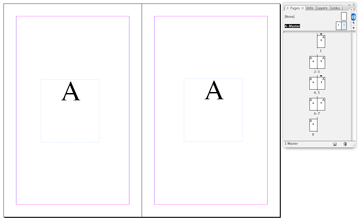
Set up your multi-page document and create automatic page numbering on the master pages.

If you want the page numbering to begin on the third page, go there and in the page palette, Override All Master Page Items. This unlocks the numbering so that changes can be made. You will notice that the faint dashed line that surrounds the text frame has reverted back to a solid line.

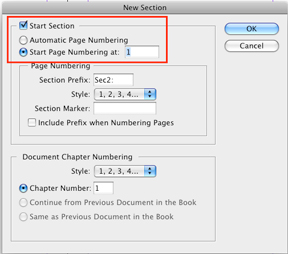
Next, go to Layout>Numbering & Section Options to bring up the New Section Dialog and set it up as in the example below and click OK. Now the third page should display the number “one.” The front cover still displays a “one,” and the second page, a “two,” but the third page begins again with number “one.”

You can delete the page numbers off the cover or any other page where it is not desirable to display page numbering by navigating to the page, overriding master page items and then deleting. Or, if you prefer, you can go to page two, for example, and in the New Section Dialog, you can change the style of the Section numbering to Roman numerals, or any of the other four ways of displaying page numbering.

Calendar Grid with Sliding Numbers

Creating a calendar from scratch and setting up the dates for each month can be tedious and frustrating, but it doesn’t have to be. The following method works equally well in Adobe Illustrator or Adobe InDesign.

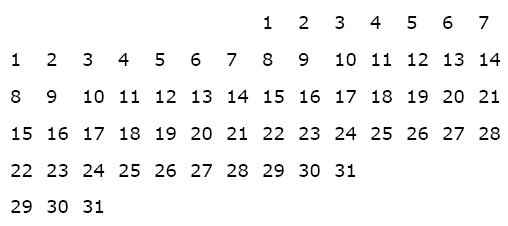
Begin by creating a paragraph with 14 tab stops using an alignment of your choice. Use these paragraph settings to create a grid of numbers which you’ll duplicate and use on each of the subsequent months. The size of type and amount of leading in your number grid depends on the overall size of the squares used for each day.

For the first line in the number grid, press the “tab key” seven times to move the cursor to the correct position to begin numbering. Set up a grid of numbers as shown below.

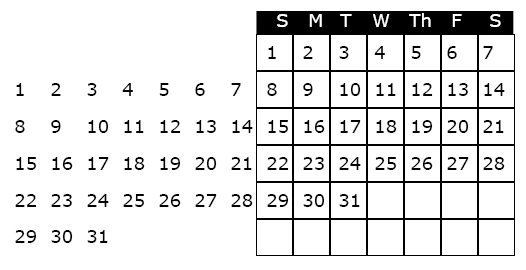
The next step is to create a an actual grid, or table to “hold” the numbers and daily information. To create the grid, use the table tool, or create a square that is the same width as your tab set, and depth equal to the leading. Use the “step and repeat” feature to duplicate the squares, and label the days of the week at the top of the grid. When the grid is completed it should look like the illustration below.

To use the calendar in a document, highlight the unused dates and make the type the same color as the background (usually white, i.e., no ink printed, so that one can write in the grid).

To create the calendar for the next month, highlight the number grid with the arrow tool, slide it into the appropriate position and white out the unused numbers.

Hope this technique saves you some time and frustration!

GR24 Final

Monday, December 15th from 1-3 pm in Com 151.

GR23 Final Project – Book

GR23 FINAL – Thursday, Dec. 11th, 6-8 pm, Com 109

Binding

  • Japanese binding style: stitched
  • Spiral – plastic coil
  • Spiral – wire
  • Comb bind
  • Velobind
  • Saddle stitch
  • Pamphlet stitch
  • Perfect bind
  • Nuts and bolts
  • Corner rounding
  • What’s your choice?

Paper

  • 20 lb. bond – inexpensive uncoated copy paper
  • 60 lb. or 70 lb. domtar plainfield -text
  • 60 lb. or 70 lb.Boise vellum – text
  • Translucent papers
  • Paper bag
  • Rice paper
  • Interior pages should be different than the cover stock

Covers

  • 80 lb – 100 lb. cover stock
  • Card stock – 8 pt. 14 pt. 24 pt. 40 pt.

Paper places

  • Continental Art Supply – Reseda bl. Just south of Sherman Way
  • Kelly Paper – Townsgate in Westlake Village, Lassen in Chatsworth

Page size

  • your choice

Number of pages

  • minimum 12 pages plus cover

Content

  • each page must have at least one image and one paragraph of text.
  • Each page must be numbered and may have other graphic elements on it.